Friday, August 27, 2010

Simple Ways to Open DOCX File Format


Now a days  Microsoft released Ms Office 2010, but most of them are still using MS Office 2003.They have not even upgraded to Ms Office 2007. Ms Office 2007 default file format are .pptx .xlsx .docx files. Ms office 2003 or other earlier versions doesn't support this file format.Here I provide 3 easy solutions to open docx file format.

3 Simple Ways to Open DOCX File Format

1. Microsoft Office Compatibility Pack
Microsoft released a tool named "Microsoft Office Compatibility Pack" ,Using this tool you can convert office 2007 files to the compactable file format for older versions.

2. OpenOffice
OpenOffice is a multi-platform (Windows, Mac, Linux) and multi-lingual office suite which is compatible with all major office suites (i.e. Microsoft Office). It includes Writer (word processing), Impress (presentation), Math, Draw, Calc (spreadsheet), and Base applications.You can open and edit MS Office 2007 Docx file format in OpenOffice.Ubuntu Linux comes with OpenOffice Software.

3. DevVicky Word 2010
DevVicky Word 2010 is another freeware application that can also open DOCX formats. It is a lightweight application when compared to OpenOffice.org, and is much lighter when compared to MS Office as well. This is another cool way of opening Docx file format.


Make Free Phone Calls from Gmail


Google has officially revealed a new feature that allows you to call land line phones or mobile phones using Gmail Phone Call Feature. If you install the voice and video chat plug-in, on your Gmail you can call phones in the US and Canada for free. You can also call in other countries, but you’ll have to pay. Fortunately, Google’s rates are really low and the service is cheaper


Friday, August 13, 2010

A new look for Google Calendar


Google gives many advantages on Google calender.


Google Earth Enterprise 4.0 now available


The Google Earth Enterprise team has long focused on bringing the innovative features of Google Earth and Maps to businesses, enabling them to create their own mapping applications from their existing data archives. Over the years we've released new features that have expanded the options for rapid, secure dissemination of geospatial data with Google Earth Enterprise (GEE), and with today's release of GEE 4.0, we're happy to announce support for two more important capabilities: mobile-based access to GEE systems, and Google Earth Enterprise Portable Solution. We're also excited to let you know about the latest versions of the Google Earth Enterprise Client and Plug-in.


Mobile Access to your Globes

In February we released a native Google Earth client for Android
to the Android Market. With GEE 4.0, the Android Google Earth client has been updated to support direct connections to customers' globes, which permits their end-users to view their organization's 3D globe, including all imagery, terrain, and vector layers, with support for custom vector search.


Google Earth Enterprise Un-Plugged

Some of you might have heard during a recent Directions Media Webinar that many of our GEE customers need to provide their end users with access to geospatial data for situational awareness, even when those users are in environments with limited or no Internet connectivity. To support this, GEE 4.0 introduces a new feature that permits authenticated end users to extract portions of a published GEE globe -- including all imagery, terrain, vectors, KMLs, and search -- and serve the data locally from their own laptops or other storage devices using a native, cross-platform, light-weight Portable Earth System.


Google Earth Enterprise Client 5.2
GEE 4.0 also has full support for the new Google Earth 5.2 client, with its many great new features, such as elevation profiles, native MGRS support, client-side data regionation, and the new embedded web-browser.

Google Earth Plug-in Updates
In addition to performance improvements, the latest release of the Google Earth Plugin includes support for historical imagery databases and the ability to connect to multiple globes simultaneously.

Source - http://googleenterprise.blogspot.com/2010/08/google-earth-enterprise-40-now.html


10 tips for using Gmail at work


Working with a lot of small business owners who have moved their email over to Google Apps, we've found that many started out managing their work email through their personal @gmail.com accounts. So, in honor of National Small Business Week and the estimated 27.2 million small businesses in America, we wanted to share some tips we've picked up from them (and other people at Google) on how to get the most out of using Gmail at work.

1. Get a Gmail account at your own domain (e.g. michelle@yourdomain.com) with Google Apps. Google Apps is a suite of communication and collaboration tools, including Gmail, Google Calendar, and Google Docs, which run on your own domain, so instead of using your @gmail.com email address, you (and other employees) can have email addresses @yourdomain.com. Using a customized email address can help build an identity around your business and make you look more professional along the way.

2. Add a custom signature to the bottom of your email messages. Email signatures are automatically inserted at the bottom of every message you send, and can be a great place to add your title, contact information, and even the latest news from your company. Just go to Settings at the top of your inbox and enter your signature text in the box at the bottom.


3. Manage multiple email accounts from a single interface. If you're like a lot of business owners, you probably regularly receive email in several different accounts. By centralizing your correspondence in Gmail, you'll be able to keep track of it all more easily. To do this, either forward your other email addresses to your main Gmail account or route them there using Gmail's Mail Fetcher, which downloads messages via POP from up to five other accounts. To set it up, visit the Account and Import tab under Settings.

4. Set up custom "From" addresses. This feature allows you to send messages from Gmail with one of your other email addresses listed as the sender. Once you set it up, you can choose the address you want to reply from while composing messages in the "From:" address drop down. This too is under Settings on the Account and Import tab.

5. Embrace labels. Folders are familiar, especially when it comes to work email. If you want to organize your emails in a similar way, make sure you're using Gmail labels. Combined with filters, they can be a powerful tool to manage your mail. Create labels for projects, vendors, customers, weekly reports, launches, to-do's -- the list goes on. You can also add custom colors to your labels, order them based on priority, and search the contents of specific labels. And don't forget that you can drag messages into labels, just like you can with folders.

6. Use chat and video chat to communicate with colleagues, or provide real-time customer support.
No matter where everyone is located, you can communicate in real-time as though you were in the same room with video chat or just chat via voice or text. Try using "Reply by chat" at the bottom of each message if you want to reach the sender quickly. To add video chat capabilities to Gmail, all you need is this small plugin and a webcam.


7. Keep track of your to-do's with Tasks.

You spend a lot of time in your inbox, so why not keep track of what you have to do there too? Tasks allows you to create multiple lists, add notes to each task, assign due dates, and get the satisfaction of checking off completed items.


8. Use offline Gmail anytime you're not online.
Despite having Internet access almost everywhere, work may take you to places where you just can't get online. Turn on offline Gmail from the Offline tab under Settings, and Gmail will download a local cache of your mail which synchronizes with Gmail's servers while you're connected. When you lose connectivity, Gmail automatically switches to offline mode, so you can continue to work, and your replies are automatically sent the next time Gmail detects a connection.

9. Create canned responses and quickly reply to common questions. When it comes to emailing at work, you're probably used to sending out weekly reports, or answering the same questions from customers or colleagues multiple times. That's where canned responses can save precious time: turn on this feature in Gmail Labs, compose your response once, save it, then use it over and over again.


10. Make sure you have the right Bob before hitting send. If you've ever accidentally sent a personal email to the wrong co-worker, or emailed your internal meeting notes to an external contact, then you'll want to turn on "Got the wrong Bob?" from the Labs tab under Settings. Based on the groups of people you email most often, Gmail will try to flag when you've accidentally included the wrong person.


Google Maps previews in Gmail and Google Buzz


Gmail offers to receive emails containing addresses in them — where to meet for dinner, the location of my friend's new apartment, etc. To find out where these places actually are, I have to copy the address, open up Google Maps, and paste it in. Today, we're making it easier to see maps of all the addresses you receive in Gmail and Google Buzz.

Enable "Google Maps previews in mail" from the Gmail Labs tab under Settings, and any time you receive an address or a Google Maps link in an email, a preview will appear containing an interactive Google Map of that location. Any Google Maps URL will work, but we currently only extract US addresses (we're working on making addresses around the world work).


Additionally, when you paste a Google Maps link into the post box in Google Buzz, it'll automatically fetch an image preview of that location that you can associate with your post.


How to add a go to top and go to bottom button


Many websites or blogs have more than 2-3 posts at homepage. I find it very irritating to scroll down to bottom manually. Using a simple JavaScript Code we can scroll to top or bottom of a page at lightening speed. You can see two fixed arrows at the left bottom of Wolverine Hacks blog.

How to add Go to top and bottom button:

a) CSS Code: Copy and paste the following code between <head> and </head>. Most advisable place would be just before ]]></b:skin> or </b:skin>

.gototop{
background:url(http://wolverinehacks.googlepages.com/arrow_top.gif)no-repeat;
display:block;_display:none;
position:fixed;
z-index:9999;
text-indent:-9999px;
width:17px;
height:17px;
overflow:hidden;
outline:none;
left:3px;
bottom:30px;}

.gotobottom {
background:url(http://wolverinehacks.googlepages.com/arrow_down.gif)no-repeat;
width:17px;
height:17px;
display:block;
_display:none;
position:fixed; z-index:9999;
text-indent:-9999px;
overflow:hidden;
outline:none;
left:3px;
bottom:5px;
}

b) HTML Code: Copy and paste the following code between <body> and </body>.

<a class='gototop' href='javascript:scroll(0,0)' title='Scroll to top of this page'>Top</a><a class='gotodown' href='#footer' title='Go to Bottom'>Bottom</a>

Save it and check your blog.

How to customize CSS and HTML Code

a) CSS Code:

.gototop{
background:url(http://wolverinehacks.googlepages.com/arrow_top.gif)no-repeat;
display:block;_display:none;
position:fixed;
z-index:9999;
text-indent:-9999px;
width:17px;
height:17px;
overflow:hidden;
outline:none;
left:3px;
bottom:30px;}

.gotobottom {
background: url(http://wolverinehacks.googlepages.com/arrow_down.gif)no-repeat;
width:17px;
height:17px;
display:block;
_display:none;
position:fixed; z-index:9999;
text-indent:-9999px;
overflow:hidden;
outline:none;
left:3px;
bottom:5px;
}

1. Change the background image link in red to the desired image source.
2. To change the position of these Buttons, change the values in red of left:3px;bottom:5px;. For example if you want to place these buttons to right bottom, then replace left:3px;bottom:5px; to right:3px;bottom:5px;

b) HTML Code:

<a class='gototop' href='javascript:scroll(0,0)' title='Scroll to top of this page'>Top</a><a class='gotobottom' href='#footer' title='Go to Bottom'>Bottom</a>

Go to bottom button is set to #footer. If you do not have #footer in your CSS then, search for #footer-wrapper or #footer-wrap.


I hope this tutorial is easy to understand.


Multi level drop down menu for blogger


A good site navigation is very important. Every visitor or reader searches for the navigation to read more and more on the blog. I have visited many sites which do not have a site navigation at all. It becomes really difficult to search something on such blogs. I believe, one should have a multi level drop down menu, which gives better accessibility of the content to the readers. Using such menu, it becomes very easy to check almost all blog posts of a blog. Taylor Thompson, owner of Video blogging tips mailed me and asked how to design a drop down menu for the website or blog, so i decided to write a tutorial about it.


Step 1: CSS Code
Copy and paste following code just above </b:skin>

#NavbarMenu {background: #72a8d2;width: 100%;height: 25px;font-size: 12px;font-family: Arial, Tahoma, Verdana;color: #FFF;font-weight: bold;padding: 0;vertical-align:middle;margin-bottom:5px;}

#nav {margin: 0;padding: 0;vertical-align:middle;}
#nav ul {float: left;list-style: none;margin: 0;padding: 0;}
#nav li {list-style: none;margin: 0;padding: 0;}
.current_page_item {background:#dee5e5;color:#2299ff;border-bottom:1px solid #dee5e5;}

#nav li a, #nav li a:link, #nav li a:visited {color: #FFF;display: block;font-size: 15px; font-family: Georgia, Times New Roman;font-weight: normal;text-transform: none;margin: 0; padding: 3px 15px 3px;text-decoration: none; }

#nav li a:hover {background: #dee5e5;color: #2299ff;margin: 0;padding: auto 15px auto; text-decoration: none;vertical-align:middle;border-bottom:1px solid #dee5e5;}

#nav li a:active {background: #dee5e5; color: #2299ff;margin: 0;padding:auto 15px auto; text-decoration: none;border-bottom:1px solid #dee5e5;}

#nav li li a, #nav li li a:link, #nav li li a:visited {background:#555; width: 150px; color: #FFF; font-size: 14px; font-family: Georgia, Times New Roman; font-weight: normal; text-transform: none; float: none; margin: 0; padding: 7px 10px; border-bottom: 1px solid #FFF; border-left: 1px solid #FFF; border-right: 1px solid #FFF;}

#nav li li a:hover, #nav li li a:active {background: #777; color: #FFF; padding: 7px 10px; }

#nav li {float: left; padding: 0;}
#nav li ul {z-index: 9999; position: absolute; left: -999em; height: auto; width: 170px; margin: 0;padding: 0;}

#nav li ul a {width: 140px;}
#nav li ul ul { margin: -32px 0 0 171px;}
#nav li:hover ul ul, #nav li:hover ul ul ul, #nav li.sfhover ul ul, #nav li.sfhover ul ul ul {left: -999em;}
#nav li:hover ul, #nav li li:hover ul, #nav li li li:hover ul, #nav li.sfhover ul, #nav li li.sfhover ul, #nav li li li.sfhover ul {left: auto;}
#nav li:hover, #nav li.sfhover {position: static;}

Step:2 HTML Code
Copy and paste following code to body section(wherever you want to place this dropdown menu).

<div id='NavbarMenu'>
<ul id='nav'>
<li><a expr:href='data:blog.homepageUrl'>Home</a></li>
<li>
<a href='#'>Blogger Hacks</a>
<ul>
<li>
<a href='#'>Most Popular</a>
<ul>
<li><a href='#'>Sub Sub Page #1</a></li>
<li><a href='#'>Sub Sub Page #2</a></li>
<li><a href='#'>Sub Sub Page #3</a></li>
</ul>
</li>
<li><a href='#'>Most Recent</a></li>
<li><a href='#'>Most Commented</a></li>
<li><a href='#'>Top Rated</a></li>
<li><a href='#'>All Blogger Hacks</a></li>
</ul>
</li>
<li><a href='#'>Blogger Widget</a>
<ul>
<li>
<a href='#'>Most Popular</a>
<ul>
<li><a href='#'>Sub Sub Page #1</a></li>
<li><a href='#'>Sub Sub Page #2</a></li>
<li><a href='#'>Sub Sub Page #3</a></li>
</ul>
</li>
<li><a href='#'>Most Recent</a></li>
<li><a href='#'>Most Commented</a></li>
<li><a href='#'>Top Rated</a></li>
<li><a href='#'>All Blogger Hacks</a></li>
</ul>
</li>
<li><a href='#'>Blogger Templates</a></li>
<li><a href='#'>Tag Cloud</a></li>
<li><a href='javascript:togglediv("headlines")'>Headlines</a></li>
</ul>
</div>


How to show 10 posts instead of 5 posts in blogger


One of the most popular and useful blogger hack or blogger widget is Recent Posts. This blogger hack lets you display recent posts of your blog. Maximum number of bloggers use blogger feed for this purpose. But, this method one limitation, i.e. only 5 most recent posts can be displayed. I had promised my readers that Wolverine Hacks will have a new look soon.While designing a new template for Wolverine Hacks, I planned to have a widget which can display 10 most recent posts.


How to show 10 recent posts

I tried to edit the blogger code to make this possible but all in vain. Thus, I used JavaScript to show more than 5 recent posts. Here is the code:

<script>
function rp(json) {
document.write('<ul>');

for (var i = 0; i < numposts; i++) {
document.write('<li>');
var entry = json.feed.entry[i];
var posttitle = entry.title.$t;
var posturl;

if (i == json.feed.entry.length) break;

for (var k = 0; k < entry.link.length; k++) {
if (entry.link[k].rel == 'alternate') {
posturl = entry.link[k].href;
break;
}
}

posttitle = posttitle.link(posturl);
var readmorelink = "(more)";
readmorelink = readmorelink.link(posturl);
var postdate = entry.published.$t;
var cdyear = postdate.substring(0,4);
var cdmonth = postdate.substring(5,7);
var cdday = postdate.substring(8,10);
var monthnames = new Array();
monthnames[1] = "Jan";
monthnames[2] = "Feb";
monthnames[3] = "Mar";
monthnames[4] = "Apr";
monthnames[5] = "May";
monthnames[6] = "Jun";
monthnames[7] = "Jul";
monthnames[8] = "Aug";
monthnames[9] = "Sep";
monthnames[10] = "Oct";
monthnames[11] = "Nov";
monthnames[12] = "Dec";

if ("content" in entry) {
var postcontent = entry.content.$t;
} else if ("summary" in entry) {
var postcontent = entry.summary.$t;
} else
var postcontent = "";
var re = /<\S[^>]*>/g;
postcontent = postcontent.replace(re, "");
document.write(posttitle);

if (showpostdate == true) document.write(' - ' + monthnames[parseInt(cdmonth,10)] + ' ' + cdday);

if (showpostsummary == true) {
if (postcontent.length < numchars) {
document.write(postcontent);
} else {
postcontent = postcontent.substring(0, numchars);
var quoteEnd = postcontent.lastIndexOf(" ");
postcontent = postcontent.substring(0,quoteEnd);
document.write(postcontent + '...' + readmorelink);
}
}
document.write('</li>');
}
document.write('</ul>');

}
</script>

<script>
var numposts = 10;
var showpostdate = false;
var showpostsummary = false;
var numchars = 100;
</script>

<script src="http://YOURBLOG.blogspot.com/feeds/posts/default?orderby=published&alt=json-in-script&callback=rp"></script>

<div class="clear"></div><p style="text-align:right;"><a href="http://feeds.feedburner.com/~r/wolverinehacks/~3/423845145/how-to-show-10-posts-instead-of-5-posts.html" title="Grab this wiget">Grab this Widget</a></p>

If you want to use this blogger hack, just copy this code to a new HTML/Javascript Gadget.


How to upload a blogger template


Many readers have requested me to write a tutorial about uploading blogger template. So, here comes the step by step guide.
  1. Download a blogger template to your computer/laptop. Unzip all the files, if the template is contained in a zip file.
  2. Log in to your blogger account.
  3. Go to layout > Edit HTML.
  4. Click on "Download Full Template" and save it to your computer/laptop. (Do not ignore this step. In case , you want to have your old template, you need this.)
  5. Use upload section, browse your computer/laptop and enter the location of downloaded template(the one you want to upload)
  6. Your template has been uploaded. Just previews your template and start using it.


Recent comments widget generator for blogger


Almost all the blogs in blogosphere have recent widgets. here is a simple blogger widget generator, which will generate recent comments for a blog. You can decide the no of comments to be displayed, Comment date and summary. This widget works with All the browsers.

This is a simple blogger widget generator to get a customized recent comments widget for blogger blogs.


15 YouTube Killer Features of 2025


1. YouTube Super Zoom

What it is: When watching a video, you can press the pause button and zoom in on smaller stuff you see in the background. For example, we see a mayor walking through a museum, and there's a painting by Vermeer in the background. Hit pause and the zoom icon, and click on the Vermeer painting, which is highlighted with a "zoomable" color (as are some other objects in the scene). It will be enlarged up to the point where you can see individual paint strokes.

How it works: Google's image comparison engine will run in the background as soon as you select the zoom tool. For instance, the comparison engine will notice that images of the region containing Vermeer's Milkmaid are available in many other places all over the web, like museum sites which have super large imagery. Google will merge those images to create an authoritative larger image, making user zooms feasible.

2. YouTube Speech Dubbing

What it is: When you watch a foreign language short film on YouTube, the voices will automatically be dubbed into the language of your current content preference. You won't even notice people aren't speaking your mother tongue.

How it works: Behind the scenes, Google's YouTube runs a speech-to-text program, followed by machine translation, followed by text-to-speech. To make the outcome more seamless, face recognition understands who is speaking and slightly adjusts the lip movements of the speaker so that it looks like the person really says the translated tone.

3. YouTube Music Composer

What it is: You're an amateur film maker. You created a thrilling, low-budget short film, but you don't have any money (or the needed talent) to add a great music score. You click "Compose music", and YouTube suggests a complete, copyright-free soundtrack to you. You check the score and possibly tweak the results where needed, and go live with your short film.

How it works: By analyzing light, pace, speech patterns – does the speaker sound nervous, happy, stressed, relaxed? – and more, YouTube's AI music composer engine automatically creates a score. Most of the "smartness" of the algorithm is actually brute force: YouTube analyzes millions of movies and their respective scores, and compares what the visuals of your clip at a specific time most likely resembles. It then merges and distorts music from the scores found, adjust harmonies and rythm, and attaches it to your clip. The music distortion is just substantial enough so that no music composer can sue Google for ripping off their piece.

4. YouTube 3D Rotation

What it is: You're viewing a clip with an interesting building in the background. You can hit the pause button and then rotate the building, showing it from different sides.

How it works: Google's all-encompassing Street View cameras collect 3D data from all kinds of scenery. They also match objects from photos snapped from different angles found all over the web. When a matching image is found in the video, it's connected to its 3D counterpart to allow you to rotate it.

5. YouTube's I'm A Star

What it is: You send a film clip of a famous Hitchcock movie scene to a friend. Your friend sees you being attacked by a bunch of scary birds, with Tippi Hedren screaming for your life!

How it works: You can pick any movie available at YouTube. Many full-length movies, like all of Hitchcock's work, have passed into the public domain by now, allowing creative remixing and more. You click the "I'm A Star" button, and let your webcam snap a few portraits of you. Google's face recognition will then show you a selection of actors of the movie. You click on Rod Taylor, and instantly have his face be replaced with yours across all of the movie.

6. YouTube's Clipteller

What it is: Atop every video there's a "Clipteller" tab. Click it, and the contents of the clip will be explained to you in story form – both in plain text, as well as a voice reading the text – complete with descriptions of what's happening in every scene, dialogue and so on. This creates very accessible videos, and it's also content which in turn gets indexed by Google, ready for full-text searching.

How it works: Google's film analysis algorithms have become so smart, they know what's happening. If a train is driving by in a scene, the algos will understand the object "train", the action "passing by", they will be able to categorize the sound into "train sounds" and so on. From that information, an AI creates a textual description, which is then "beautified" by comparing it with typical story writing patterns, found in the millions of books which Google scanned.

7. YouTube's Filmmaker

What it is: Filmmaker lets you edit a video, apply filters, crop, tweak and mash videos at your pleasure. You can add titles and special effects, like an explosion. You can even choose from a variety of famous actors to play along in your video.

How it works: Filmmaker is an app sitting in the browser, with no further downloads necessary, thanks to the power of HTML9. It integrates with mobile phone cameras and so on so that making short movies becomes very casual. Based on old films, which Google all digitized, Filmmaker allows you to pick from a vast range of classic actors, which are all available as smart 3D avatars. This way you can tell Arnold Schwarzenegger to jump off a balcony and then let the house behind him explode. (Arnold will get a share of your ad revenues from movie displays.)

8. YouTube's Geo Filter

What it is: Depending on the location of the video viewer, you'll only see scenes which are legal per your government's rules. For instance, if violent movies are illegal in your country, then the scene which would contain a sword fight will be replaced with a ballet scene. Similarly, if demonstrating for free speech rights is illegal in your country, then a news report showing a demonstration will turn into coverage of a baseball game.

How it works: Google's YouTube offers all governments an API to feed them their legalese and religious preferences in simple terms, like "May contain violence", "May not contain demonstrations" and so on. When a user visits YouTube, their location is known by their IP, and YouTube – the AI of which understands the actual content of a clip – compares with the legalese API data to understand which scenes should be replaced. Replaced scenes are either taken from other, copyright-free videos, or re-enacted using YouTube's smart 3D objects and avatars.

9. YouTube Change the Cam

What it is: When watching an archived news report on YouTube – say, a press conference by the president – a camera symbol shows up in the bottom of the video. Click it, and the same press conference will be displayed from another camera angle.

How it works: YouTube checks, rather fuzzily, if the specific audio track of a clip has matches in other clips. If it finds other clips, it checks if the video differs substantially. If that's the case then YouTube figures it's the same scene shown from a different angle.

10. YouTube Shut Out the Kids

What it is: YouTube allows you to switch on a setting so that kids won't be able to see certain content, like brutal kung fu movies.

How it works: It doesn't really work, because kids end up outsmarting their parents and blocking them from seeing anything. YouTube cancels this feature after a two week trial and creates a support hotline for confused parents.

11. YouTube Auto Ratings

What it is: Every clip is assigned a rating expressing how funny it is, how dramatic, how brutal, how sad, how romantic and so on. Nobody manually sets these ratings, though. You can then search, for instance, for a movie that's funny but thrilling, and get back a comedy action buddy movie.

How it works: A great number of voluntarily participating YouTube users have their web cam turned on whenever they surf the web, including YouTube. A small program implemented in Google's browser recognizes the face and parses the facial emotion, and also listens to the user voice. If you smile, the cam will know, and attach that emotion (happiness/ funny/ good) to the individual video clip or other page you're on. This in turn helps them identify the emotions a particular clip or web page triggers, which then helps them deliver better web search and YouTube clip search results. (SEO spammers quickly learn to abuse this feature by paying large crowds of people to visit their websites with a forced smile.)

12. YouTube Social Network

What it is: Google turns YouTube into a giant social network, based on videos you viewed.

How it works: Similar to the Gmail Buzz program, Google connects everybody to everybody else, ignoring certain privacy details for a while. People will be shocked and complain about how their viewing habits are suddenly connected to their web search history and email address book, so Google will refine their opt-out setting, but at that point millions of users have already been connected, and Facebook is dead.

13. YouTube Find Your Product

What it is: A company, like the Coca Cola Company, can enter their product – "bottle of coke" – and find videos of people happily consuming their product. They can then add their banners to the side of that video, or create lotteries where everyone consuming their product has a chance to win big money, or they can simply analyze consumer behavior.

How it works: A straightforward image recognition is the basis of Find Your Product. YouTube content creators later understand that they can make more money by strategically placing products inside their videos – because this will get them better ads, and a chance to win in the product lotteries – so YouTube is flooded with lots of grassroots product placement.

14. YouTube 3D

What it is: You can view any film on YouTube in 3D. Even without special glasses, and without the respective film being shot in 3D.

How it works: Based on a patent by Matt Cuts, Google's algos analyze depth layers in clips by checking movements and generating a pseudo-3D scenery out of it, extrapolating existing visuals with a lot of guess work. Using a very complicated Sub pixel Rendering Blinking Effect built into the Google Chrome OS for that purpose – lucky Google, as their major OS market share allows them to roll out whatever browser feature they need for their web sites – the movie transform into 3D.

15. YouTube Smell the Vid

What it is: Once activated, a scene in a movie will smell just like it would if you were there. If the movie protagonist is on a fishing hunt on his boat then you'll smell the salt water and the fish. If the protagonist of a romantic movie puts on perfume, you will know its brand without seeing.

How it works: The Google Chrome Pad computer will have an odor emitter. Just like speakers emit sounds, this piece of hardware emits smell, by mixing different base fragrances to create e.g. cinnamon, strawberry, salt water and so on. Websites can define these fragrances in their style sheets. YouTube on the other hand automatically analyzes video clip content semantics, and emits the needed fragrances, outputting them in real-time.

16. YouTube's Just Let Me Watch the Movie, OK?

What it is: The "Just Let Me Watch the Movie, OK?" setting (JLMWMovie-OK), once activated, will show a movie as it was actually intended to be seen by its director.

How it works: JLMWMovie-OK is rather simple: activate it, and the killer features 1 to 15 as mentioned above will be deactivated. The artistic integrity of the movie is preserved, and you can lean back with a pack of popcorn and actually just enjoy the video.


Google’s New Look


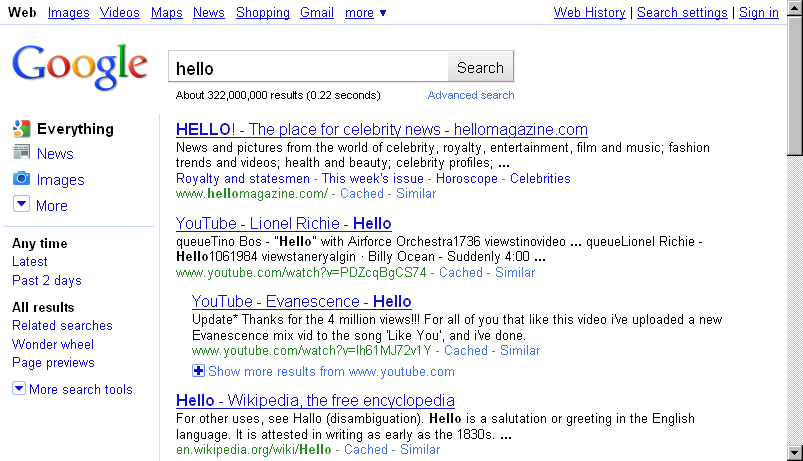
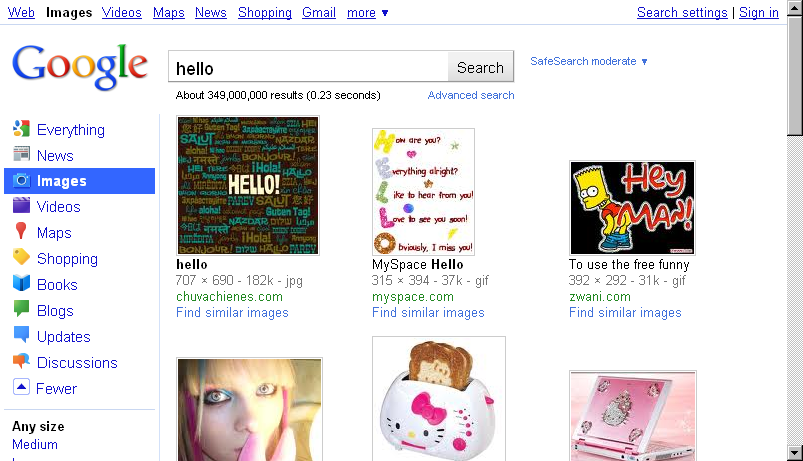
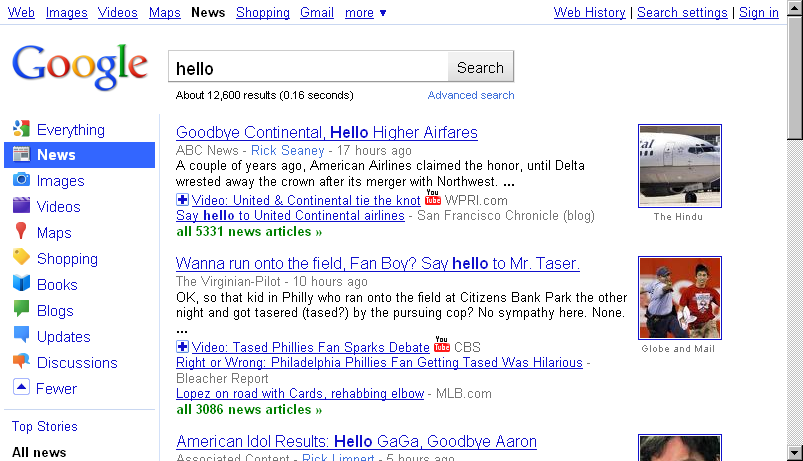
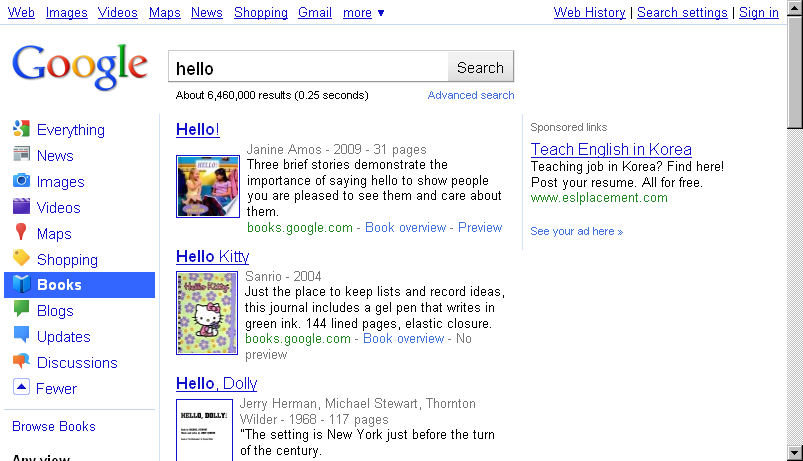
Google has been testing this redesign for a long time, and today it's going live globally. You will see a new logo and a new left-hand side bar in results. The logo feels brighter and flatter than the old one, the search results have become less minimalist.

I'll wait to see if I grow used to the side bar, I get a feeling that for the most part I will simply ignore it as I don't need it (I rarely do a web search and then want to switch to book search, or videos; often when I want a maps or image search, I go straight to that particular search). But who knows, perhaps it's useful for certain types of research tasks, and it does make the different Google sites discoverable for users who might not know them (though with Google's "jazzy" one box model, which is still in for the "everything" search, discover ability of the other sites was also provided). The UI of Google's sub services also feels more consolidated now, part of a single search. In the meantime the crown for most uncluttered search results might have to be passed on to another site in 2010.

What are you like about the new design, and what are you dislike?


Google TV


Google plans to introduce a box accompanying the TV which tries to make the TV "smarter" by letting you search for content... and browse the web, and view photo albums and more, as Google's video introduction shows. It's called Google TV, and as Techcrunch writes, "It will work as a new box – you'll just hook up your existing cable or satellite box to it. All the hardware will include a keyboard and a mouse – but it will work with Android phones too. And you can use multiple Android devices to control the same TV – no more fighting over the remote."

Techcrunch continues, "Google TV is built on Android (2.1 right now, but they'll upgrade it later). It runs Google Chrome for the browser. And yes, it has Flash (10.1)." Some partners of Google on this, like Sony, will also release TVs with Google TV built in, Techcrunch reports. Techcrunch suspects Google may be going for "advertising to the 4 billion TV users worldwide."

Google's Vincent Dureau says, "The project started 2½ years ago, with a vision of a walled garden of TV-optimized web services." (Vincent Dureau's favorite "test materials" on TV are "Battlestar Galactica, Life on Discovery, Democracynow.org, Al-Jazeera's newscasts (they have reporters more places than any other network); and, these days, the NBA playoffs.")


Logitech's box


Partner Logitech on their details page adds that their companion box will be coming "later this fall", and that "All you need is a broadband Internet connection and a TV with an HDMI input. To take full advantage of the content search, you'll need a satellite or cable set-top box with an HDMI output as well. And, for now, you'll need to reside in the United States."

Google at their blog post on the subject says, "Developers can start optimizing their websites for Google TV today. Soon after launch, we'll release the Google TV SDK and web APIs for TV so that developers can build even richer applications and distribute them through Android Market."

Rich, smart, optimized and easy? Search for anything then play it on your TV? That's the nice thing about pre announcing stuff for Google... people will mostly quote from the ad material the company itself offers, which will only show the positive sides, and no quirks, shortcomings and bugs. How Google TV will fare in the wild, we might only be able to tell when we test the real thing.


Google Chrome Web Store


Google preannounced a Web Store project for their Chrome browser/ OS. Perhaps it's meant to be a kind of Apple App Store for websites, i.e. more closed, more casual to choose from, perhaps more streamlined. Google writes "Google Chrome users who find web apps in the store will be able to create convenient shortcuts in Chrome for easy access. Also, developers will have the option to easily sell their apps through the store using a convenient and secure payment system."

Google adds, "Web apps listed in the Chrome Web Store are regular web applications that are built with standard web tools and technologies. The same web applications will run in other modern browsers that support these technologies." If Google moderates the directory, perhaps these apps could be a safer environment than the web at large, though on the other hand, apps may also request special extended permissions, which might mean less security. If such a directory takes off and would become the de fact way for developers to distribute web software (not to say that's likely, just hypothetically speaking), it would mean incredible control for the app directory moderator... Google.


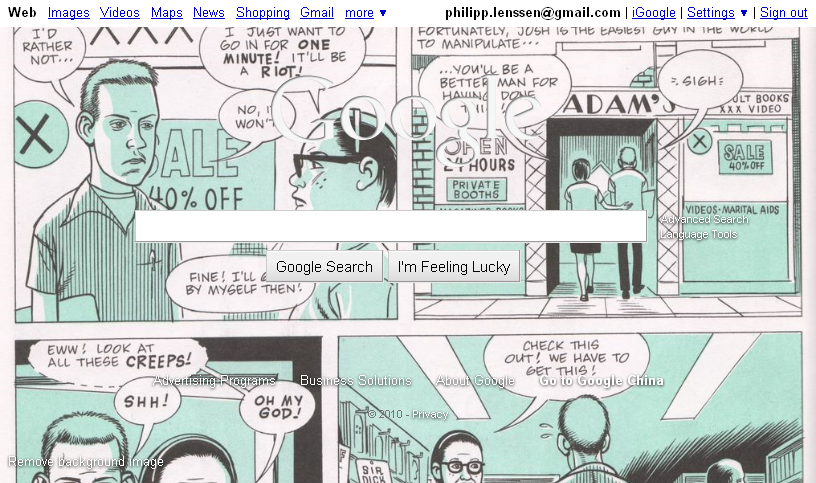
What’s Your Google Background Pic?


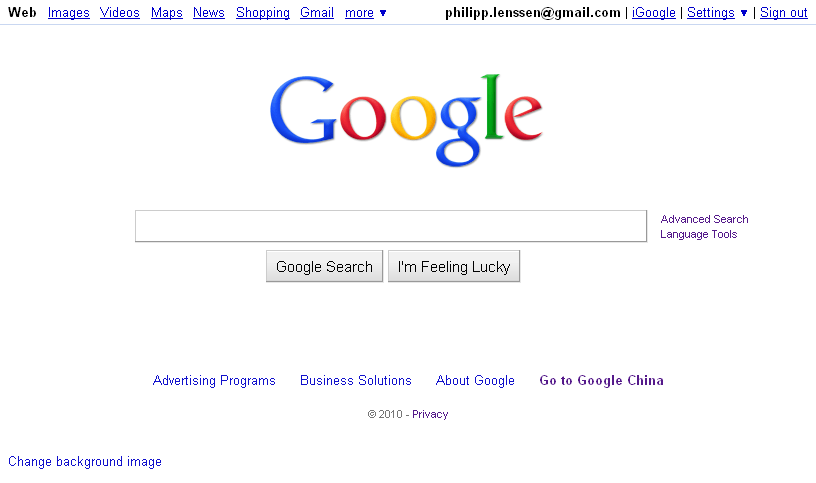
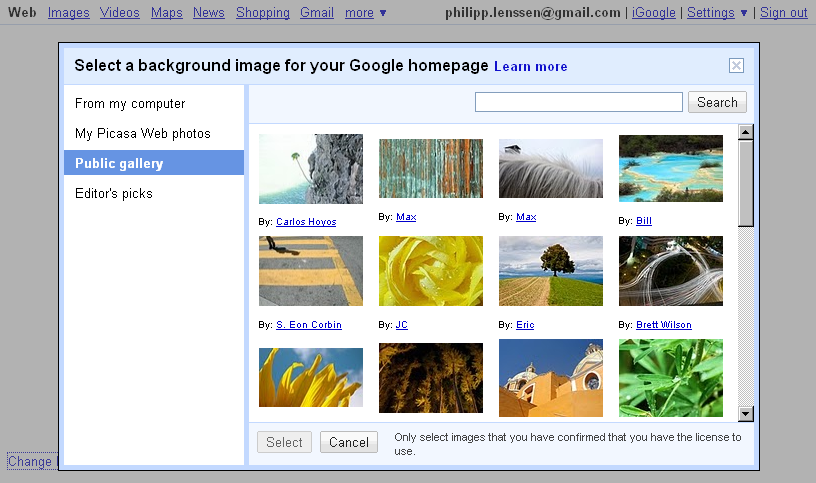
As Google's post-fade-in homepage is almost becoming cluttered through the addition of a "Change background image" feature in the bottom left corner – one empty corner left!


Youtube Video Upload limit increases to 15 minutes for all users


YouTube is the best place to upload video. Without question, the number one requested feature by our creators is to upload videos longer than 10 minutes. We've heard you, and today we're pleased to announce that we've increased the upload limit to 15 minutes.

Youtuve encourage you to take full advantage of this new time limit by making a video of your "15 minutes of fame." Imagine that this video is all the world will ever know about you: what would you want to communicate? What will be the enduring stamp you've left on us all? Tag your video with "yt15minutes," upload it by Wednesday, August 4, and we'll select a handful of people to truly gain their 15 minutes of fame by featuring them on the YouTube homepage in a future spotlight.

In the meantime, you may wonder "why now?" -- the upload limit for non-partners has been 10 minutes for years. Well, we've spent significant resources on creating and improving our state-of-the-art Content ID system and many other powerful tools for copyright owners. Now, all of the major U.S. movie studios, music labels and over 1,000 other global partners use Content ID to manage their content on YouTube. Because of the success of these ongoing technological efforts, we are able to increase the upload limit today. We will continue our strong commitment to provide advanced technology and tools to protect the rights of small and large copyright owners worldwide. We'll also do everything we can to release incremental improvements like this one that benefit our video creators.

One final note: if you're uploading a video that was previously rejected for being too long, you'll have to go into "My Videos" and delete it before attempting to upload it again. Thanks and happy uploading!


New Google Images Design


When you think about "information," what probably comes to mind are streams of words and numbers. Google's pretty good at organizing these types of information, but consider all the things you can't express with words: what does it look like in the middle of a sandstorm? What are some great examples of Art Nouveau architecture? Should I consider wedding cupcakes instead of a traditional cake?

This is why we built Google Images in 2001. We realized that for many searches, the best answer wasn't text—it was an image or a set of images. The service has grown quite a bit since then. In 2001, we indexed around 250 million images. By 2005, we had indexed over 1 billion. And today, we have an index of over 10 billion images.

It's not just about quantity, though. Over the past decade we've been baking deep computer science into Google Images to make it even faster and easier for you to find precisely the right images. We not only find images for pretty much anything you type in; we can also instantly pull out images of clip art, line drawings, faces and even colors.

There's even more sophisticated computer vision technology powering our "Similar images" tool. For example, did you know there are nine subspecies of leopards, each with a distinct pattern of spots? Google Images can recognize the difference, returning just leopards of a particular subspecies. It can tell you the name of the subspecies in a particular image—even if that image isn't labeled—because other similar leopard images on the web are labeled with that subspecies's name.

And our "Similar colors" refinement doesn't just return images based on the overall color of an image. If it did, lots of images would simply be classified as "white." If you're looking for [tulips] and you refine results to "white," you really want images in which the tulips themselves are white—not the surrounding image. It takes some heavy-duty algorithmic wizardry and processing power for a search engine to understand what the items of interest are in all the images out there.

Those are just a few of the technologies we've built to make Google Images more useful. Meanwhile, the quantity and variety of images on the web has ballooned since 2001, and images have become one of the most popular types of content people search for. So over the next few days we're rolling out an update to Google Images to match the scope and beauty of this fast-growing visual web, and to bring to the surface some of the powerful technology behind Images.

Here's what's new in this refreshed design of Google Images:
  • Dense tiled layout designed to make it easy to look at lots of images at once. We want to get the app out of the way so you can find what you're really looking for.
  • Instant scrolling between pages, without letting you get lost in the images. You can now get up to 1,000 images, all in one scrolling page. And we'll show small, unobtrusive page numbers so you don't lose track of where you are.
  • Larger thumbnail previews on the results page, designed for modern browsers and high-res screens.
  • A hover pane that appears when you mouse over a given thumbnail image, giving you a larger preview, more info about the image and other image-specific features such as "Similar images."
  • Once you click on an image, you're taken to a new landing page that displays a large image in context, with the website it's hosted on visible right behind it. Click anywhere outside the image, and you're right in the original page where you can learn more about the source and context.
  • Optimized keyboard navigation for faster scrolling through many pages, taking advantage of standard web keyboard shortcuts such as Page Up / Page Down. It's all about getting you to the info you need quickly, so you can get on with actually building that treehouse or buying those flowers.

And for our advertisers, we're launching a new ad format called Image Search Ads. These ads appear only on Google Images, and they let you include a thumbnail image alongside your lines of text. Check out our Help Center for more info on how try them out; we hope they're a useful way to reach folks who are specifically looking for images.

These upgrades are rolling out in most of our local interfaces worldwide over the next few days. We hope they not only make it easier to search for images, but also contribute to a better aesthetic experience. We see images as a major source of inspiration, a way of connecting the world—and their growth is showing no signs of slowing down. We'll work to make sure Google Images continues to evolve to keep up.

Source - http://googleblog.blogspot.com/2010/07/ooh-ahh-google-images-presents-nicer.html


5 things you may not know you can do with attachments in Gmail


The more I use Google Docs, the less I have to deal with sending attachments back and forth. While attachments' days may be waning, they're still very much a part of most people's email experience. Here are five things you may not know you can do with Gmail to make sending, receiving, viewing, and finding attachments easier:

1. Drag attachments in
Simply drag files from your desktop right into the message you're composing and they'll upload from there. (Make sure you're using Google Chrome or Mozilla Firefox 3.6 for this to work.)


2. Select multiple attachments
Attaching multiple files one by one is no fun. Instead, just multi-select the files you want to attach by holding down the Ctrl key (or Command on a Mac) and clicking on each file you want to attach. Holding down the Shift key will select a continuous list of files.


3. Never forget an attachment again
Gmail looks for phrases in your email that suggest you meant to attach a file (things like "I've attached" or "see attachment") and warns you if it looks like you forgot to do so. Every day, this saves tons of people the embarrassment of having to send a follow up email with the file actually attached.


4. View attachments online
When you receive an attachment, sometimes you just want to view it and there's no need to download or save to your desktop. The Google Docs viewer allows you to view .pdf, .ppt, and .tiff files in your browser. Just click the "View" link at the bottom of the message.


5. Find that long lost attachment via search
If you're looking for an attachment someone has sent to you, Gmail's advanced search operators can help you find what you're looking for quickly and accurately.

A couple examples:
  • To find all messages that contain attachments: has:attachment
  • To find all messages from your friend David that contain attachments: from:david has:attachment
  • To find all messages that have .pdf attachments: has:attachment pdf
  • To find a specific attachment named physicshomework.txt: filename:physicshomework.txt


What Happens When You Run Out of Storage Space in Gmail ?


It turns out that bottomless bucket of Gmail (Gmail) storage actually does have a bottom. Just ask Mike Monteiro, the most recent person to break Gmail's usage cap.

So much for, "never delete an e-mail again." When Gmail first launched in 2004, its massive storage space (then 1GB) was a highly touted feature. Over time, the amount of space made available to users has grown — by our count, it looks like standard Gmail and Google Apps users have about 7.3GB at their disposal today. However, users also now send larger e-mail attachments and archive more messages. Still, for non-corporate e-mail users, racking up more than 7GB in e-mail archives is a pretty impressive feat.

A few years ago, when some users first started to hit the ceiling for Gmail storage space, Google (Google) rolled out the ability to buy more storage. Nonetheless, it's a problem Google doesn't expect many users to ever encounter.

If we could offer one tip to the big G, it might be to remove that "Who needs to delete when you have so much storage?!" line from the Gmail Trash folder.


Gmail Now Lets You Save Attachments to the Desktop via Drag-and-Drop


Saving dozens of e-mail file attachments to your computer just became a hell of a lot easier.

Google has added a new feature to Gmail the ability to save file attachments by simply dragging-and-dropping them onto the desktop. If you hover over the file icon or the "Download" link for any attachment, you'll notice the new text prompting you to drag the file to your desktop to save.

We just tried out the new feature, and we have to tell you: It's really as simple as it sounds. There is one caveat to saving file attachments via drag-and-drop, though: The feature is only available in Google Chrome


15 Awesome and Useful Safari Extensions


Apple released Safari 5 in June, introducing official support for browser extensions. This move now means that developers have the ability to build add-ons to enhance the overall browsing experience on Safari.

Apple launched its own official Safari Extensions gallery at the end of July, showcasing some of the best developer submissions. The gallery is just getting started, but already there are some fantastic additions that any Safari user can appreciate.

As die-hard extension addicts since the first Safari 5 release, we've scoured the web to find 15 of our favorites. Click through the gallery for our picks.

The official gallery isn't the only place to find new and impressive extensions. Both Safari Extensions on Tumbler and Pimp My Safari feature daily updates and highlight great creations from across the web.
What are some of your favorite Safari web extensions? Let us know!


VIDEO

ENTER-TAB1-CONTENT-HERE

RECENT POSTS

ENTER-TAB2-CONTENT-HERE

POPULAR POSTS

ENTER-TAB3-CONTENT-HERE
 

free download softwares Copyright © 2010 LKart Theme is Designed by Lasantha, The Blog Full of Games